admin
If you're asking, “Why is Google not indexing my website?”, start with the affected URL. Google may not have discovered it, may be unable to access it, or may be excluding it because of an indexing directive, duplication, or its evaluation of the page. A missing search result alone doesn't identify the cause.
The useful next step isn't another plugin. It's finding the reported reason, checking the page, and fixing the problem that actually exists. This guide walks you through that process, with screenshots and practical checks for business websites, online stores, and blogs.
Maaz Digital Marketing can help you investigate missing pages, prioritize technical fixes, and connect that work with your wider SEO goals.

Is your website missing from Google, or just not ranking?
Your page may already be indexed but rank too low for the search you're trying.
Check the exact URL in Search Console before treating the problem as an indexing failure. If the page is indexed, investigate relevance and search performance; if it isn't, follow the reported exclusion reason first.
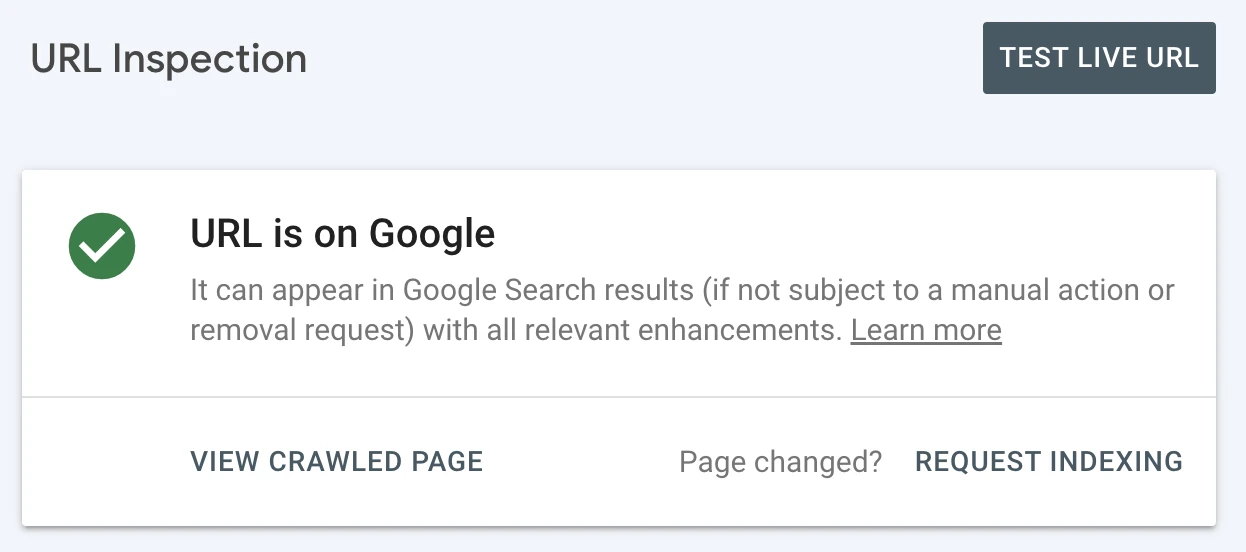
Screenshot guide: This result indicates an indexed URL, not a first-page ranking. Check your own URL before changing settings.
What's the difference between crawling, indexing, and ranking?
Crawling is fetching a page, indexing is processing and storing information about it, and ranking determines which results appear for a particular search. These are separate stages. A page can be discovered without being crawled, crawled without being indexed, or indexed without attracting meaningful search traffic for your target queries.
For a store owner, that distinction changes the task. An inaccessible product needs a technical fix. An indexed product appearing for unsuitable searches needs a targeting review. Google's explanation of how Search works describes these stages.
How do you check a page's indexing status in Search Console?
Open the correct Search Console property, enter the complete page URL in URL Inspection, and read its stored indexing result. Review the reported reason and crawl information. Use the live test to investigate the current page after changes; a successful live test doesn't mean the URL has already entered Google's index.
- Copy the exact page URL, including its correct domain and path.
- Inspect it in the property's URL Inspection tool.
- Expand the page-indexing details and note the last crawl information.
- Compare Google's selected canonical with the page you expect to appear.
- Run a live test if you've changed the page since Google last checked it.
A site: search can help you spot results, but it isn't a complete inventory of indexed URLs. See Google's missing-page troubleshooting guide and URL Inspection instructions.
What should you check first when Google isn't indexing your website?
First establish the scope: one page, a shared page type, a new website, or a sudden change across the site. Record a few important affected URLs and their reported statuses. This helps you identify a common cause and avoids spending time trying to index duplicates, removed pages, or private content.
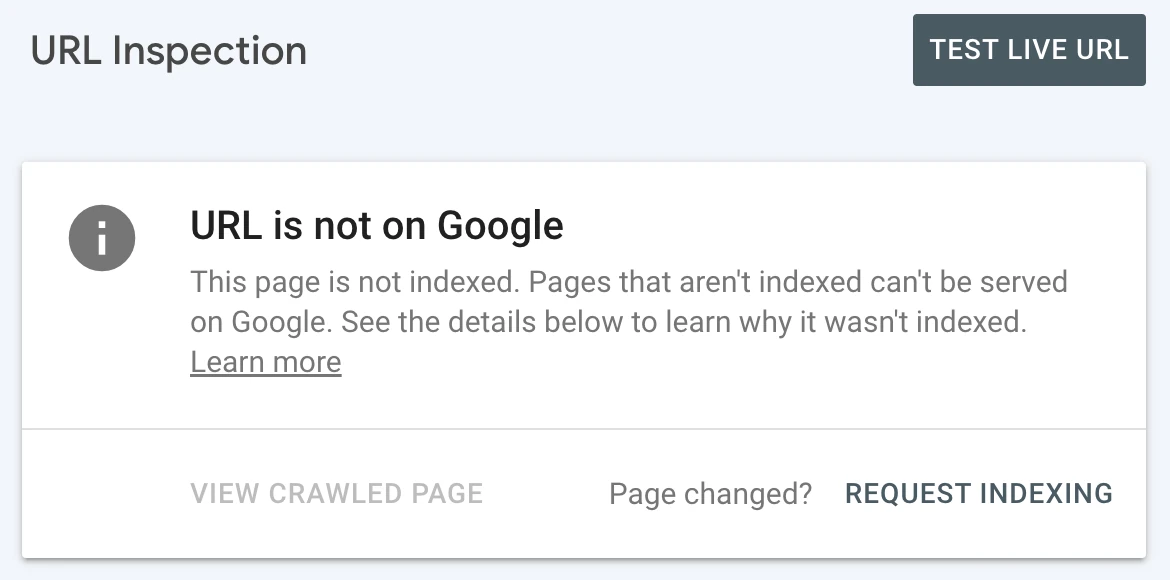
Screenshot guide: The headline confirms the problem category, but not its cause. Expand the details in your account before choosing a fix.
|
Your situation |
Start here |
Useful evidence |
|---|---|---|
|
Brand-new website |
Check launch settings, access, and discovery |
Homepage inspection and sitemap status |
|
One important page missing |
Compare it with a similar indexed page |
Directives, canonical links, and content differences |
|
Many product or service pages missing |
Investigate their shared template |
A sample of affected URLs and recent changes |
|
Previously visible pages disappeared |
Review changes around the drop |
Deployment dates, redirects, and indexing reports |
|
Only duplicate URLs excluded |
Check the intended preferred version |
Canonical destination and its indexing status |
Get a clear diagnosis. Send Maaz Digital Marketing your website URL and a few missing page links. Request a free technical SEO audit and discuss what needs attention first. Chat with Maaz on WhatsApp.
What do the main Search Console indexing statuses mean?
An indexing status describes Google's recorded handling of a URL, not always the underlying cause or the fix. Separate pages awaiting crawling from pages already crawled, and distinguish unwanted exclusions from intentional ones. Review representative URLs in each group so you can act on a pattern rather than the headline count.
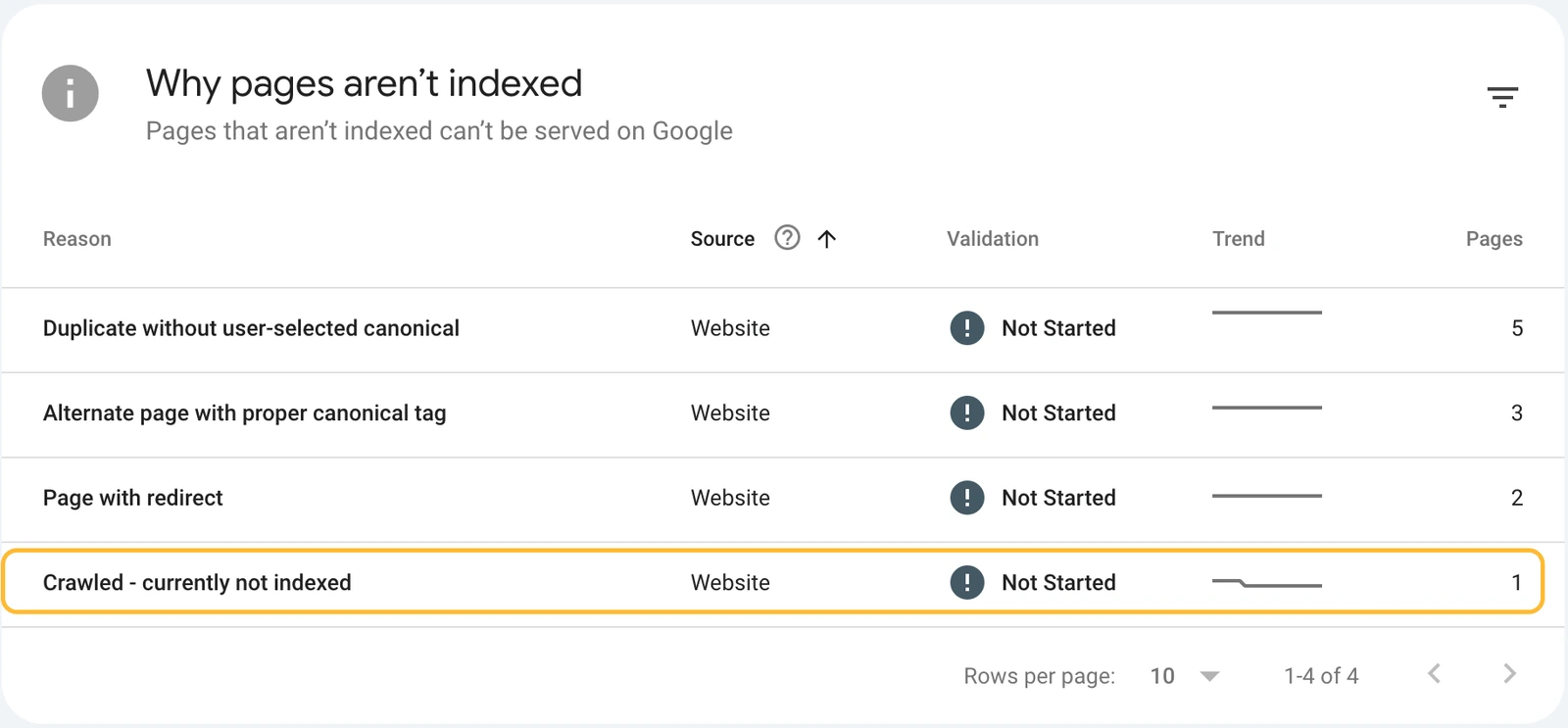
Screenshot guide: Open the relevant reason, then inspect affected URLs. A high excluded count isn't automatically a fault.
What does “Discovered – currently not indexed” mean?
This status means Google knows the URL but hasn't crawled it yet. Check that important pages have clear internal links and that the site is accessible and stable. Investigate persistent patterns across many URLs, but don't assume this message alone proves a content penalty or a specific server problem.
For example, a new category linked only from an XML sitemap deserves a navigation review. A whole catalogue stuck in this state alongside server errors needs an access investigation. Crawl-budget analysis is mainly relevant to larger or unusually complex sites; it isn't the default explanation for a small business website. Google's crawl-budget guidance explains the scope.
What does “Crawled – currently not indexed” mean?
Google has crawled the URL but hasn't indexed it in the reported state. Inspect the current page, its rendered content, and possible duplicates before deciding what to change. The message doesn't identify one universal fix, and rewriting text or requesting indexing repeatedly won't resolve every situation that produces it.
If many affected pages use the same template, compare a small sample with indexed pages from that template. Look for meaningful differences, such as missing product details or an empty rendered body. Google's Page indexing report reference defines these statuses.
Are duplicate and alternate canonical pages always a problem?
No. Google often indexes one preferred URL from a group of similar pages, leaving alternate versions excluded. That's expected when the selected page is the version you want customers to find. Investigate when the preferred destination is incorrect, unavailable, or missing, rather than trying to make every duplicate appear separately.
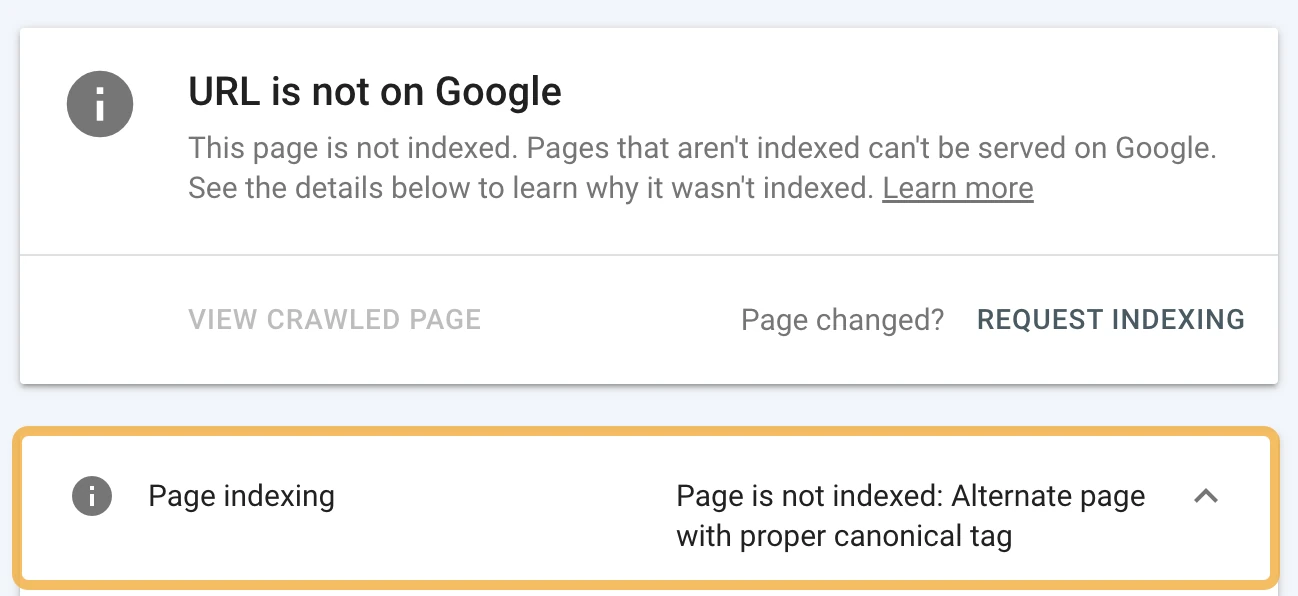
Screenshot guide: This status can be healthy. Check the selected destination before changing a canonical tag.
Could your website be blocking Google?
Yes. Indexing directives, crawl restrictions, login requirements, or infrastructure problems can prevent Google from processing important pages. Check the exact affected URL and its response rather than relying on how it looks in your browser. A site can work for you while returning a different response to a crawler.
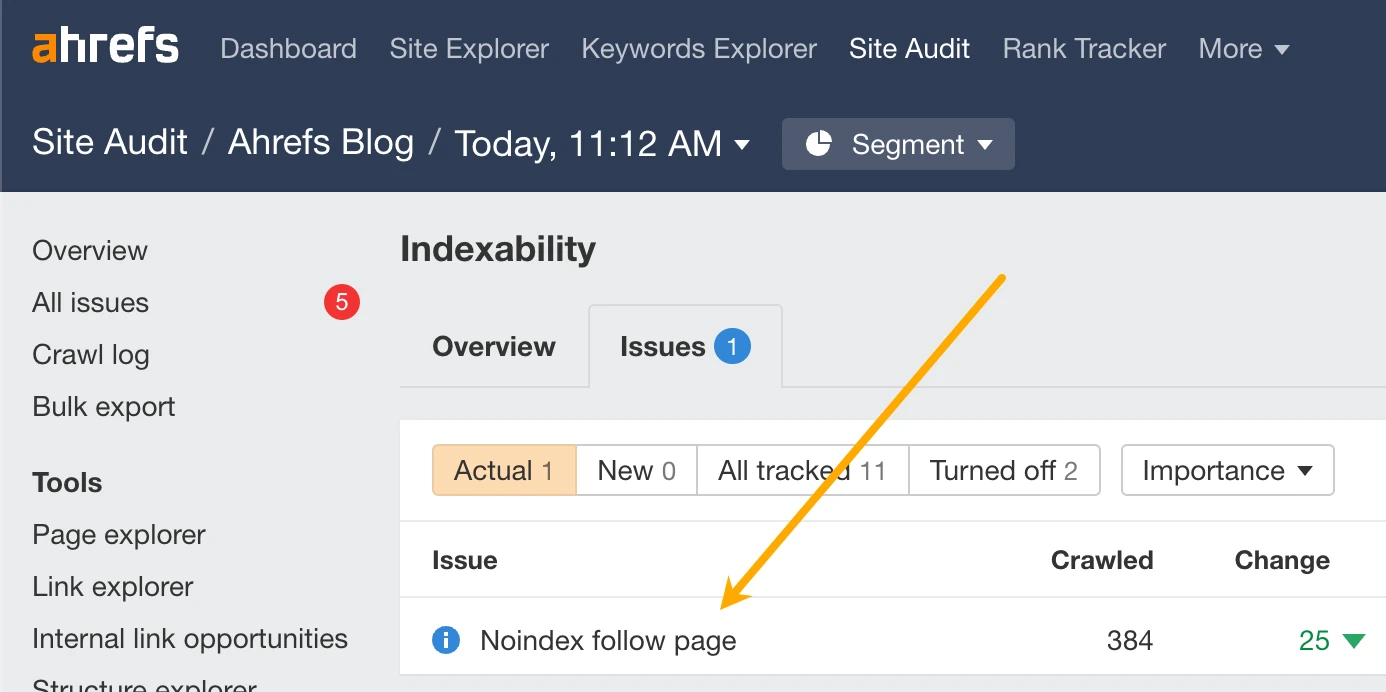
Screenshot guide: A crawler can flag directives across many pages. Review the listed URLs and confirm their intended purpose before removing restrictions. Tool example: Ahrefs.
Is a noindex directive excluding important pages?
A noindex directive tells supporting search engines not to include the page in their index. It can appear in a robots meta tag or an HTTP response header. Check both locations, including settings added by your CMS, SEO plugin, or server, and remove it only from pages intended for search.
A common launch scenario is copying a staging-site setting onto the public website. Fix the setting at its source, clear relevant caches, and check the response again. Don't remove intentional protection from account or private pages. Google's robots meta-tag documentation covers these directives.
Is robots.txt preventing Google from crawling important content?
A robots.txt rule can stop Google from fetching a page or resources needed to render it. Review rules that match the affected URL and check that they're intentional. Crawl blocking isn't a reliable way to keep a URL out of search; Google may know about a blocked URL from other links.
Don't delete the whole file to fix one mistaken rule. Ask your developer to adjust the relevant path and verify the result. If a page must stay out of the index, use an appropriate indexing control that Google can process. See Google's robots.txt guide.
Are passwords, firewalls, or server errors stopping access?
Passwords, bot challenges, denied requests, DNS failures, and server errors can prevent successful crawling. Compare Search Console's fetch information with server or firewall logs, then involve your hosting provider or developer where needed. Restore access for the intended public content without disabling security protections across the whole website unnecessarily.
Google's crawl-error troubleshooting guide covers connection and response problems. A successful HTTP response is a technical prerequisite, not an indexing promise; check that the response contains the actual page rather than an error message.
Could your page structure or content be causing indexing problems?
Yes. Weak discovery paths, conflicting URL signals, missing rendered content, and pages that add little useful information can all deserve investigation. Compare affected URLs with pages that work well on the same site. Fix the specific difference you find instead of applying the same rewrite or technical change to everything.
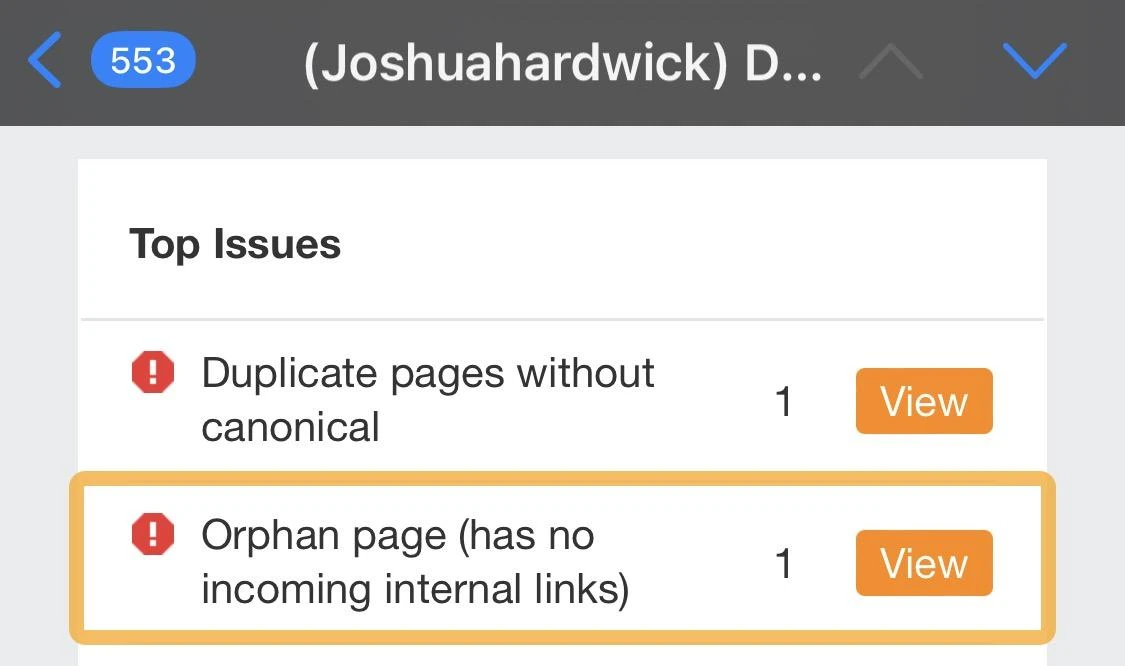
Screenshot guide: An orphan-page warning points to a discovery check. Confirm the crawl's coverage, then add relevant links where the page belongs.
Are important pages missing internal links?
Important pages should be reachable through relevant, crawlable links from the rest of your website. An orphan page has no incoming internal links within the assessed site structure, making normal discovery harder. Connect it to suitable categories, service pages, or useful articles rather than relying entirely on a sitemap submission.
Imagine a service page published last month but never added to the services menu. Linking it from the relevant service overview gives visitors and crawlers a route to it. Use descriptive anchor text that explains the destination. Google's link guidance explains crawlable links.
Are canonical tags or redirects pointing to the wrong page?
Canonical tags and redirects can direct attention toward another URL, so check their destinations carefully. A template mistake can point many distinct pages to the homepage or an old domain. Align your intended preferred URLs with internal links and sitemap entries, then verify that those destinations load the correct content.
Use the canonical screenshot above as a reminder to inspect the destination, not as proof of an error. Google can choose a different canonical from the one you suggest. Its canonicalisation guidance explains the signals involved.
Can Google see the page's main content?
Google runs JavaScript, but broken scripts, blocked resources, and rendering problems can leave important content unavailable. Test the affected URL and inspect the rendered HTML, screenshot, and resource information. Your normal browser view alone isn't enough, especially if it benefits from stored login details, cached content, or interactions a crawler doesn't perform.
In URL Inspection, run a successful live test, open View Tested Page, and review the screenshot and HTML. Check that the main description, products, or service information is present. Google's JavaScript troubleshooting guide describes the available checks.
Does the page offer useful information beyond similar pages?
Review the page's purpose and the information a visitor actually gains from it. Repeated supplier descriptions, empty categories, and near-identical service pages may need improvement or consolidation. Add accurate details that help the reader complete a task; increasing the word count without improving usefulness doesn't establish a stronger reason to index it.
For a product, that may mean exact specifications, original photos, compatibility details, and honest availability. For a service, it may mean a clear scope, process, and relevant evidence. Use Google's people-first content questions as a review aid, not a word-count formula.
Why did previously indexed pages disappear from Google?
Previously indexed pages can disappear after URL changes, accidental exclusions, access failures, content changes, or Google's reassessment. Start with the timing and inspect affected examples. Review recent releases and relevant Search Console reports before assuming a penalty, because several technical and nontechnical causes can produce a similar loss of visibility.
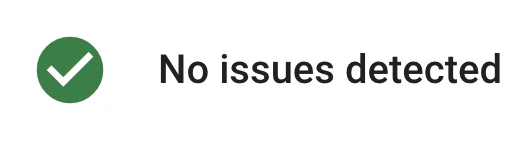
Screenshot guide: Check Manual Actions and Security Issues when investigating an unexplained loss. A clean report doesn't rule out technical problems or ranking changes.
Ask what changed near the first observed drop:
- Was the site redesigned or moved to another domain?
- Did product URLs, redirects, or navigation change?
- Was an SEO plugin, theme, or security setting updated?
- Did a deployment add noindex or alter canonical tags?
- Was a temporary removal requested in Search Console?
For a migration, compare old URLs with their intended new destinations rather than checking only the homepage. Google's site-move guidance describes the checks that help maintain continuity.
How do you fix indexing problems in the right order?
Fix confirmed obstacles in a sequence that matches the evidence: access first, indexing controls and URL signals next, then discovery and page usefulness. Keep a record of the URLs changed and the date of each fix. Request another crawl where appropriate, and review the same pages rather than relying only on sitewide totals.
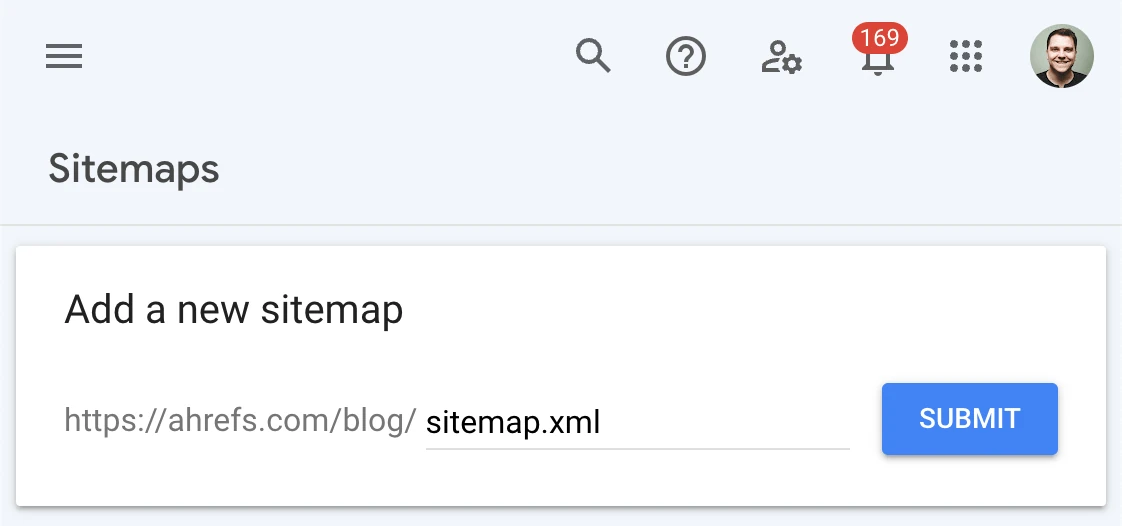
Screenshot guide: Submit your own sitemap URL, not the example domain shown here. A sitemap supports discovery; it doesn't override exclusions.
- Choose priority URLs. Start with services, products, or resources important to your business.
- Record the evidence. Note each status, crawl date, canonical destination, and recent change.
- Group shared problems. A template-level issue may affect hundreds of URLs.
- Restore intended access. Resolve confirmed fetch failures and accidental restrictions.
- Correct URL signals. Fix inappropriate canonical destinations, redirects, and broken links.
- Check the content. Confirm that the rendered page is complete and useful.
- Update discovery paths. Improve relevant internal links and the sitemap where needed.
- Recheck and submit. Use the live test, request indexing for suitable URLs, and validate fixes where the report offers it.
- Monitor the same sample. Record what changed instead of resubmitting every day.
|
Confirmed issue |
Targeted fix |
Verification |
|---|---|---|
|
Accidental noindex on service pages |
Correct the responsible setting |
Directive absent from current response |
|
The product canonical points to an unrelated page |
Correct the template's preferred URL |
Rendered canonical and destination checked |
|
Public page returns server errors |
Resolve the underlying hosting fault |
Stable successful fetches with real content |
|
Important page has no internal route |
Add relevant crawlable links |
Link visible and destination accessible |
Keep only intended, preferred URLs in your sitemap and use accurate update information. See Google's sitemap guidance.
Need help implementing the fixes? Maaz Digital Marketing can review the affected pages and agree on the technical work, content improvements, and verification your site needs. Discuss your indexing project.
How long does Google take to index a page after a fix?
There's no fixed indexing deadline after a change. Google needs to revisit and process the page, and resolving a technical obstacle doesn't guarantee inclusion. Track the fix date and subsequent crawl information, then check for progress over time instead of treating an indexing request as proof that the issue is resolved.
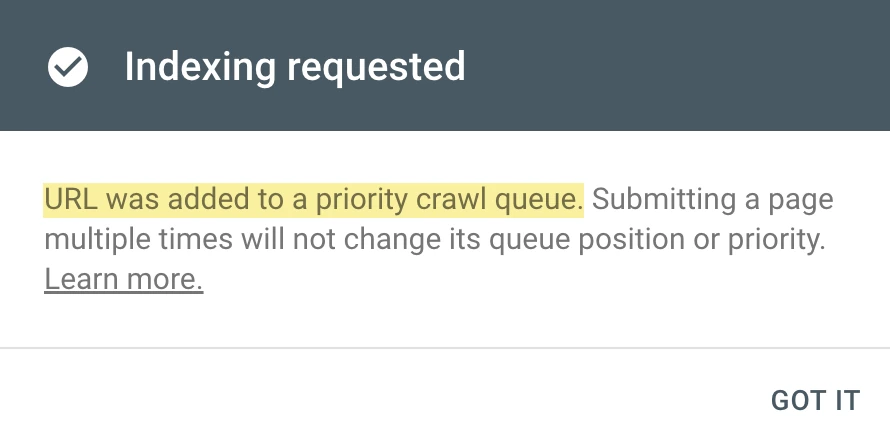
Screenshot guide: This confirms a request, not completed indexing. The notice also explains that repeated submissions don't improve priority.
Google says crawling can take days to weeks and that repeated requests won't make the same URL get crawled faster. If the problem persists, check for new evidence or an unresolved cause. Follow Google's recrawl guidance, rather than a promised 24-hour turnaround.
What should you avoid when trying to get pages indexed?
Avoid shortcuts that don't address the reported cause. Repeated submissions, unrelated redirects, unnecessary plugin changes, and bulk content rewrites can waste time or introduce new problems. Keep intentional exclusions in place, use supported tools for their intended purpose, and judge progress by verified page behavior and indexing status rather than sales promises.
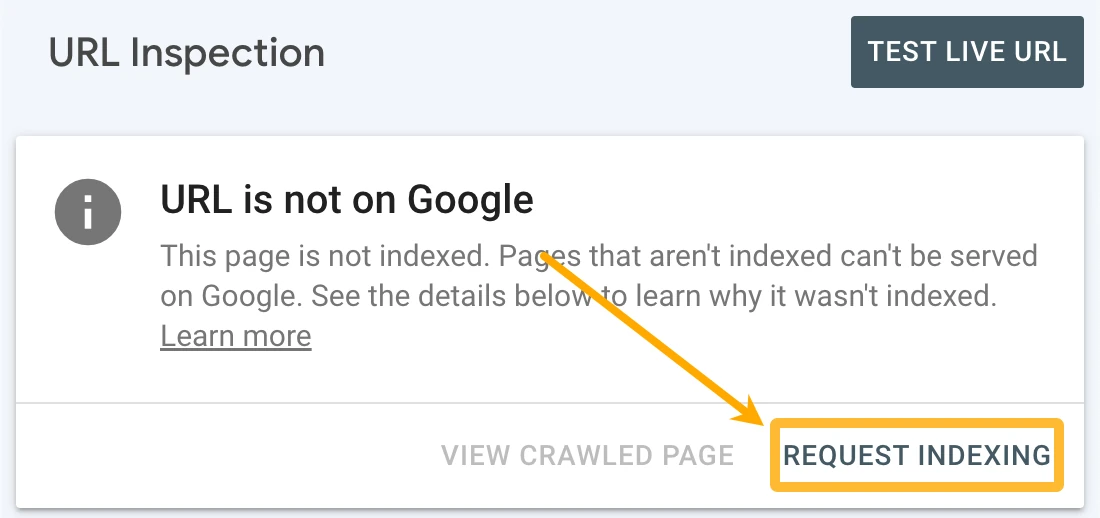
Screenshot guide: Use this control after a meaningful fix or for an appropriate new URL. It isn't a substitute for resolving the cause.
- Don't try to index every URL. Duplicates, private pages, and removed content may belong outside search.
- Don't redirect everything to the homepage. The destination should serve the original intent when a suitable replacement exists.
- Don't buy an indexing guarantee. An external service can't control Google's inclusion decisions.
- Don't assume ads or structured data solve access problems. Diagnose the actual barrier.
- Don't use the Indexing API for ordinary blog or product pages. Google limits it to supported job-posting and livestreaming page types. See its Indexing API rules.
How can Maaz Digital Marketing help resolve indexing problems?
Maaz Digital Marketing can investigate the affected pages, separate expected exclusions from problems, and propose a practical implementation plan. The work can combine technical checks, content review, and internal-link improvements. You'll have a clearer explanation of the issue, agreed responsibilities, and evidence to review after changes have been made.
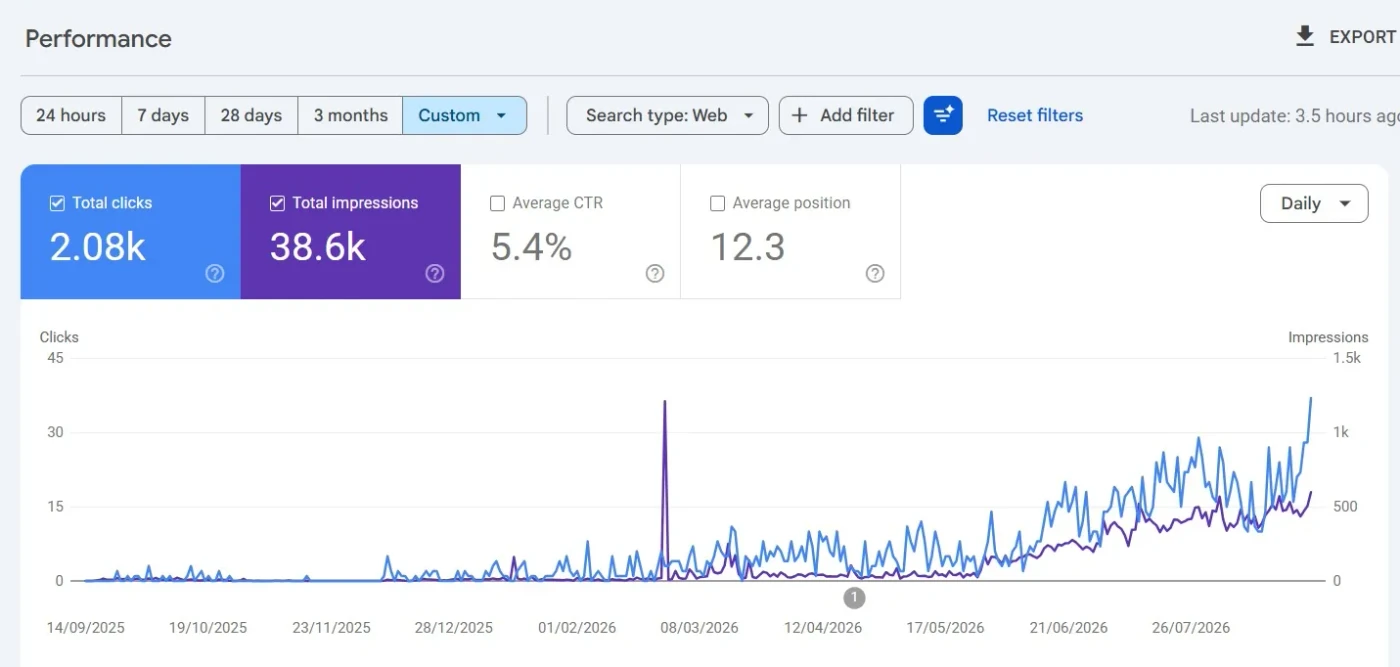
Portfolio context: This published gym-accessories example shows 2.08K clicks and 38.6K impressions. It demonstrates reported search performance, not a documented before-and-after indexing repair. View our SEO portfolio for the original context.
What does a technical SEO indexing audit include?
An indexing audit examines representative URLs, their Search Console information, access rules, response behavior, canonical signals, rendering, and discovery paths. It should explain which findings matter to your business and what to do next. The deliverable is a prioritized set of actions, with implementation and follow-up responsibilities clearly agreed.
|
Audit area |
What we can investigate |
Practical output |
|---|---|---|
|
Scope and priorities |
Affected services, products, and page templates |
A focused URL sample and issue list |
|
Technical access |
Directives, responses, redirects, and rendering |
Confirmed obstacles and recommended fixes |
|
Content and discovery |
Page purpose, duplication, and internal routes |
Targeted page and linking improvements |
|
Follow-up |
Changed URLs and later inspection results |
A record of completed work and remaining issues |
What can you review in Maaz's SEO portfolio?
You can review published search-performance and e-commerce purchase examples to understand the kinds of reporting Maaz uses. Read each screenshot with its project context and measurement limits. Search clicks, tracked purchases, and indexing status answer different questions, so none should be presented as interchangeable proof of an indexing recovery.
Our agency overview describes Maaz Ahmed's more than six years of experience and work across local and international markets. For your website, we'll discuss the specific problem and the work required rather than promise to reproduce another project's numbers.
What should you send us to start your project?
Send your website address, a few important missing URLs, the Search Console messages you've seen, and details of recent website changes. Include your target markets and the pages most important to inquiries or sales. This gives us a useful starting point for discussing the audit, access needs, scope, and next steps.
If access is required, use an appropriate account invitation rather than sending passwords in chat. You don't need to diagnose everything before getting in touch; a clear example is enough to begin the discussion.
Get a clear plan for your missing pages. Share your website and indexing issue with Maaz Digital Marketing. Request your free audit and discuss the work your site needs. Start your project on WhatsApp.
Frequently asked questions
Why isn't Google indexing my new website?
A new website may not have been discovered or processed yet, but launch settings, access restrictions, and missing links can also delay progress. Check the public homepage, inspect important URLs, and submit a valid sitemap before assuming that waiting alone will solve the issue or that the site has been penalised.
Why is my homepage indexed but my other pages aren't?
Google evaluates individual URLs, so an indexed homepage doesn't mean every product, service, or article will also be included. Inspect a few missing pages and compare their links, directives, canonical destinations, and content with indexed pages to identify a shared problem instead of repeatedly submitting the homepage for another crawl.
Does submitting a sitemap guarantee indexing?
No, a sitemap helps search engines discover the URLs you consider important, but it doesn't guarantee that those pages will be crawled or indexed. The pages still need to be accessible and suitable for inclusion, so fix confirmed restrictions and keep the sitemap aligned with your intended preferred URLs.
Can a page be indexed if robots.txt blocks it?
A blocked URL can still appear in search if Google learns about it elsewhere, even though Google can't crawl its content normally. If you need to prevent indexing, use an appropriate noindex directive on a crawlable page or access protection for private content rather than relying on robots.txt alone.
Can Maaz guarantee that Google will index my pages?
No agency can guarantee Google's indexing decisions, but Maaz Digital Marketing can investigate obstacles, agree on suitable fixes, and verify the work completed. You'll get a clearer understanding of the affected pages and the next steps, with progress assessed through evidence rather than a promise of inclusion by a fixed date.